II. The Lean Marketing Stack
Setting up Segment
Segment is software that manages all your integrations. It’s also an important part of our marketing stack: it tracks the user data that we’ll feed into Mixpanel, Google Analytics, and Optimizely.
The benefit to you, the site owner, is you only have to install the JavaScript snippet and tracking events once. Once installed, you can add new integrations using the Segment UI.
Here is the other benefit: each time you enable a new integration, it will automatically use your historical data from Segment.
Step 1: Sign up and install the JavaScript snippet
Start by going to segment.com and signing up for an account. They’ll first ask you to define a username for your account. After that, they’ll help you set up your organization’s account (in your case, your “Organization” is your team). Finally, they’ll get you to set up a project. For Segment, a project is a web app, mobile app, or an individual website.
After you sign-up, create a personal account and define your organization, you’ll be asked to create a project
To install tracking on a website, you’ll use Segment’s Analytics.js. They’ll provide you with a snippet that looks like this:
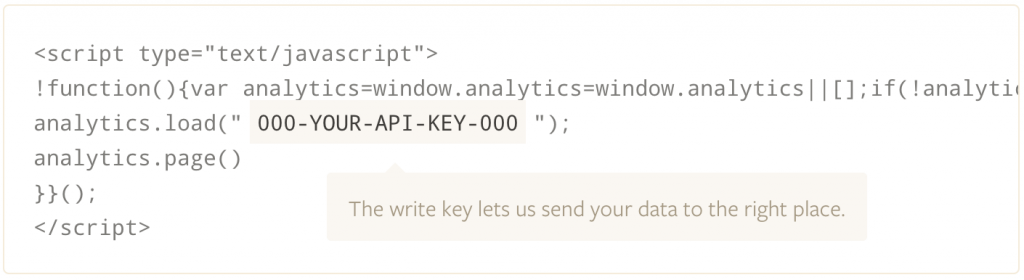
Install the Segment script in the header of your site
Once this snippet is installed on all your relevant pages, you’ll able to use the Google Analytics integration right away. For all the other integrations, you’ll need to identify users, plus track pages and events.
Worried that Segment will affect your page load times? Don’t worry! Analytics.js loads asynchronously. The page won’t wait for Segment and its integrations to finish loading before showing the page to visitors.
Step 2: Create a tracking plan
A tracking plan is a list of the events you want to track. The best place to start is by defining your funnel.
For example, mine looks like this:
- Viewed homepage
- Signed up for email sequence
- Viewed registration page
- Signed up for account
In Segment, these are the categories you’ll use:
- Events: these are user actions you’d like to track. Examples: Logged In, Logged Out and Signed Up. This is also where you’ll track events such as Mailing List Sign Up.
- Pages: which pages are users viewing in your funnel? Some examples: Homepage, Blog, and Mailing List Confirmation.
- Screens: if you have a mobile app, you can identify the different screens users are viewing. Examples: Sign Up, Main Menu and Settings.
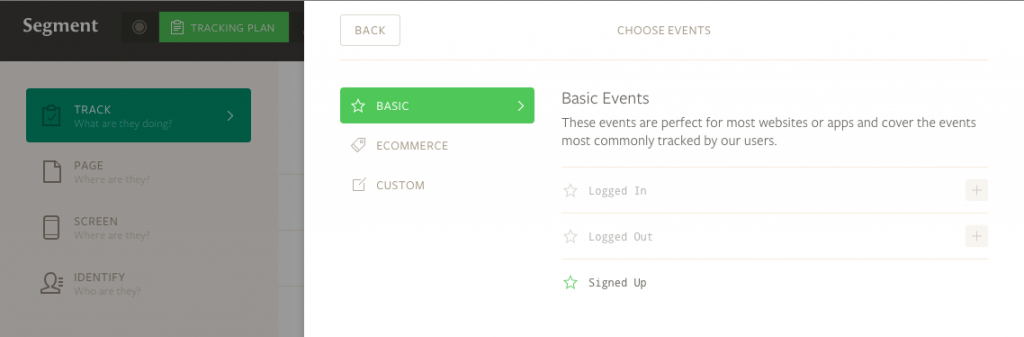
Use Segment’s Tracking Plan feature to plan out everything you’d like to track in your funnel.
Step 3: Identify users
As a default, when a new person visits your site, Segment will treat them as an anonymous visitor. The next step is to correctly identify that person after they’ve signed up for an account or signed up for your mailing list. Once Segment’s identify method is called, it will associate all of their anonymous history on your site with a particular user identity.
Here’s what a basic identify call would look like in JavaScript:
analytics.identify({
email: ‘string’,
first_name: ‘string’
});
If you’re creating a course or membership site on WordPress, you can use Segment’s WordPress plugin. This will automatically identify users and registrations.
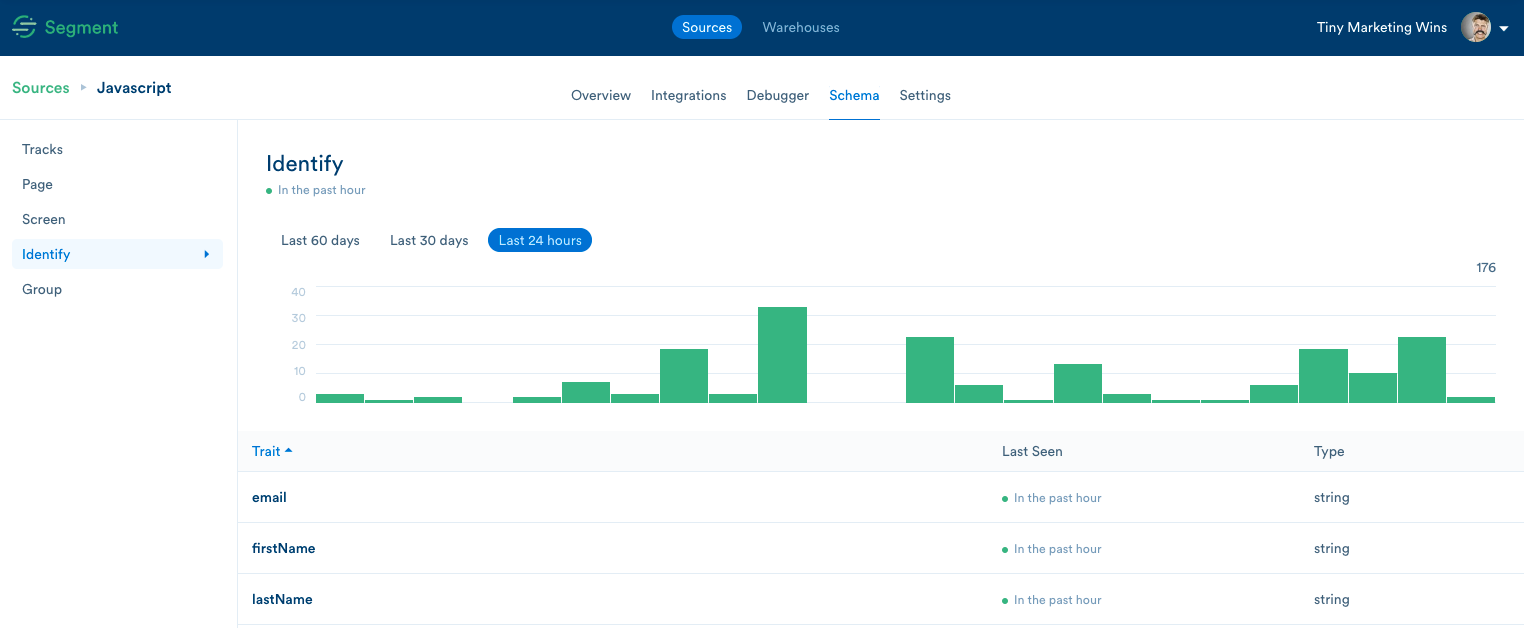
You can view user traits in the “Identify” section of the Schema menu:
Step 4: Add code for tracking events and page views
Now it’s time to enact your tracking plan. Go back to the placeholders you created earlier under Events and Pages.
Note: if you’re using the WordPress Plugin, you can get by without having to install any code manually. Just ignore this section!
Events
Let’s start with events. These are the actions people will be doing on your website or in your app. They could include things like: Subscribed to Newsletter, Logged In, and Created Item.
Segment will give you code samples in JavaScript, .NET, Ruby, Java, Android, PHP, Python, Node, iOS and GO. Here’s what the Newsletter tracking event would look like in JavaScript:
analytics.track(‘Subscribed to Newsletter’);
Add all your event code to the appropriate places on your marketing site, and in your app.
You can also add properties to your events. For example, if you allowed people to log in via GitHub, your event call might look like this:
{
“type”: “track”, “event”: “Logged In”, “properties”: {
“accountType” : “GitHub”
}
}
Pages
Tracking which pages people are viewing will allow you to build funnels and follow their progress through your marketing site and into your product.
A very common page to track is your Homepage. For that, you would include analytics.page(“Homepage”); in the snippet you’re loading on the homepage:
<script>
…
analytics.load(“PNgy1f94eYd3h91XiTaHdDM5BsnCjsGq”);
analytics.page(“Homepage”);
}}();
</script>
Once you’ve saved this page, visit it in your browser. You should see the Page show up in the Segment debugger.
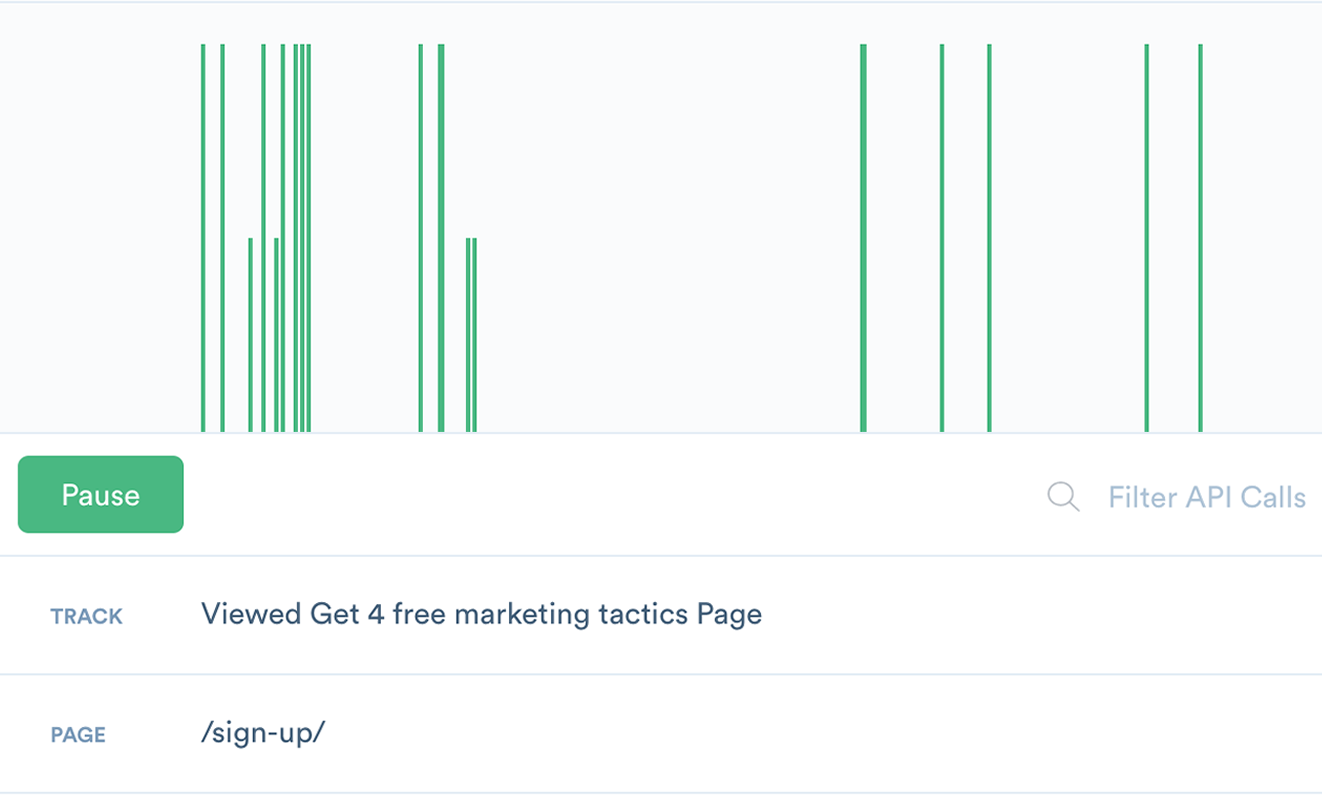
If you click on the event, you’ll get more detailed information about the call. Here’s an example:
analytics.page(‘Homepage’, {
name: ‘Homepage’,
path: ’/’,
referrer: ‘https://www.google.ca/’,
search: ”, title: ‘Network Effects’,
url: ‘http://networkeffects.me/’
});
Example: Mailing list set up
Let’s say you want to identify people who come to your landing page and sign up for your mailing list.
Your code could look something like this:
<script>
jQuery(document).ready(function($){
analytics.track(‘Viewed Subscription Form’);
$(“#mailing-form”).submit(function(e){
var form = this;
// Stop form from submitting too early
e.preventDefault();
var fname = $(“#first_name”).val();
var email = $(“#email_address”).val();
analytics.track(“Subscribed to Newsletter”, function(){
analytics.identify(email, {
email: email,
first_name: fname
}, function(){
$(e.target).unbind(‘submit’);
form.submit();
});
});
});
});
</script>
Now, if you tested this (by submitting the subscription form) you would see something like this in Segment’s debugger:
analytics.identify(‘[email protected]’, {
email: ‘[email protected]’,
first_name: ‘George’
});
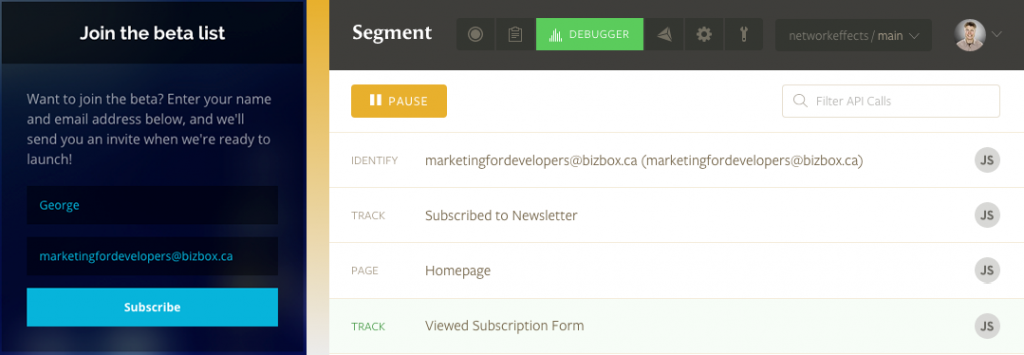
You can test this tracking event by performing the action, and seeing if it shows up in the debugger
If you have other integrations enabled in Segment, you’ll see this data in other apps as well. For example, here’s how the registration above would look in Mixpanel:
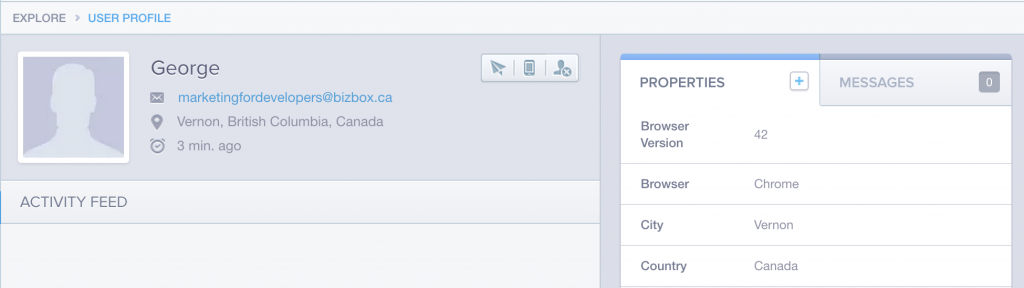
The user’s data is sent to your other integrations, like Mixpanel
The pieces are in place
You have successfully installed the Segment tracking code that identifies people who are visiting your site, follows the pages they view and tracks the events (actions) they take on those pages.
Now, it’s time to put this tracking to good use in Google Analytics, Mixpanel, and Optimizely.
Buy the EPUB & PDF to read offline and support the work.
Buy the book — $10