II. The Lean Marketing Stack
Using Mixpanel
Mixpanel is another analytics tool, similar to Google Analytics. However, it excels in a few areas, notably with real-time tracking, funnels, and the way it reports on events.
If you’ve followed my advice and linked to your Segment account to Mixpanel, you should see this when you log in:
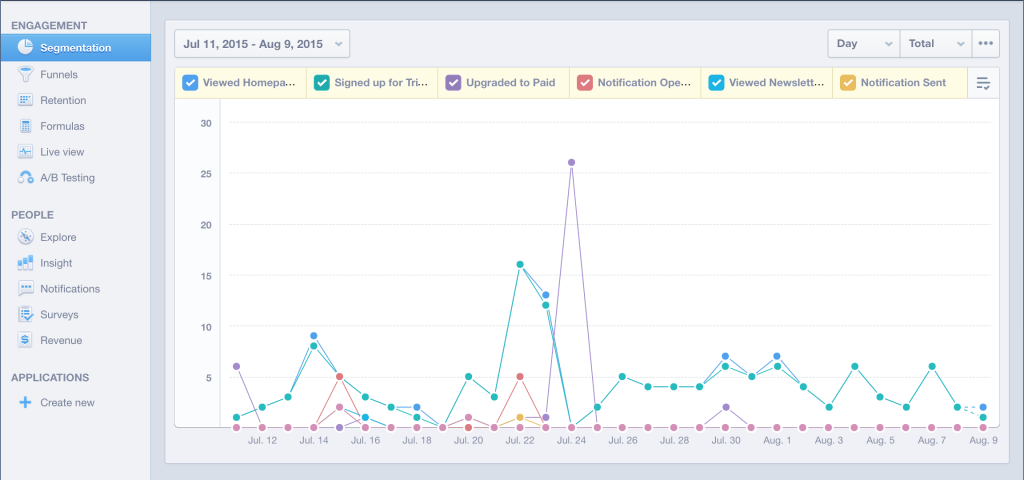
Mixpanel’s Segmentation report
The event data you identified when setting up Segment is already populated here in Mixpanel.
You’ll notice that Mixpanel offers many reports. In this chapter we’ll be covering:
- Segmentation
- Funnels
- Explore
- Insight
- Notifications
Segmentation
As a default, Segmentation will show you a chart of your top 12 events with the most volume. It will give you a high-level view of how people are using your website and app, and help you observe trends. For example: in the image above, there was a spike in people who upgraded on July 24.
However, the real power with Segmentation is the ability to ask questions of your data. Let’s say you want to know:
Where do most of our paying customers come from?
First, you would choose your New Paying Customer event from the top drop-down. Then, you would segment by Referral Source. The resulting chart would look something like this:
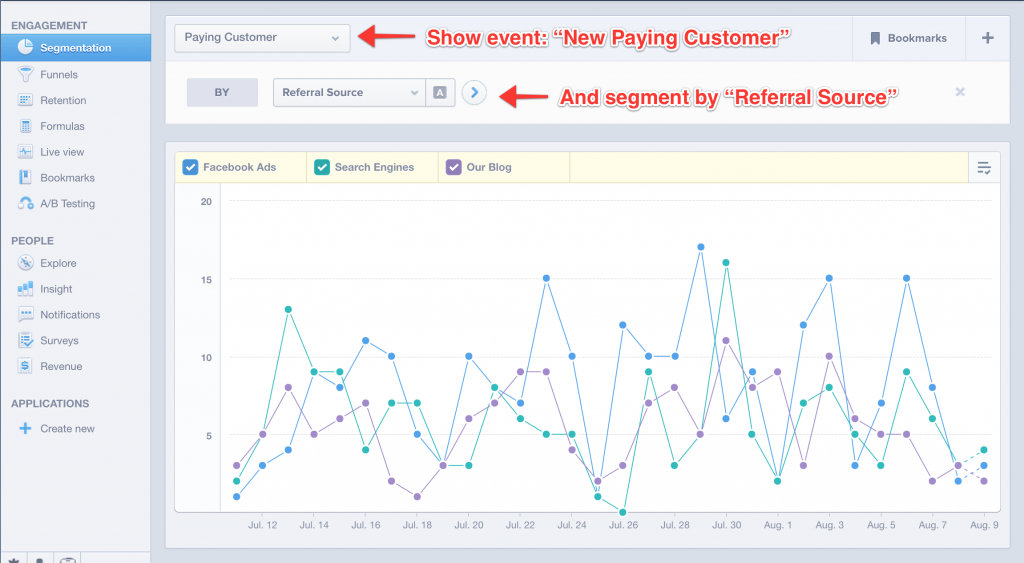
Segmentation allows you to ask your data questions
From this chart, we could infer that Facebook Ads are driving more conversions than other sources of traffic lately. I can also segment by additional dimensions (countries, plan type, gender). As with anything, the more data events you collect, the better you can understand your customers.
Funnels
We introduced the idea of funnels in the Google Analytics chapter. What I like about Mixpanel’s funnels is they focus on user actions, as opposed to page views. They’re also much easier to slice up on the fly.
To create your first funnel in Mixpanel, click Funnels in the side navigation, and then click Build a Funnel.
The interface is quite a bit easier to grok than Google’s. You enter, in succession, the events you’d like to track:
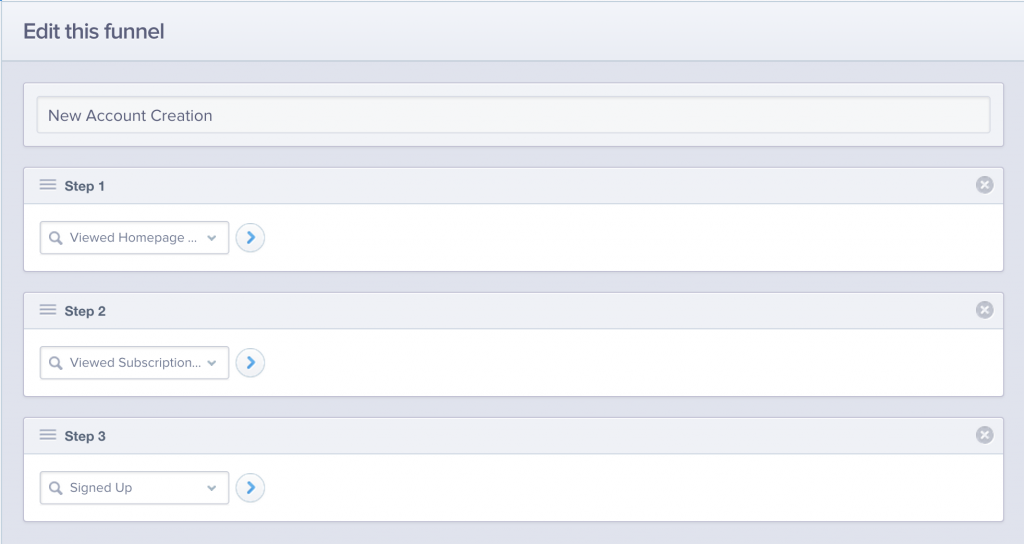
Building a funnel in Mixpanel
Before you click Save, take a look in the bottom right-hand corner. There’s a little time clock icon there with the default 30 days to convert selected. If you click that icon, you’ll get options that look like this:
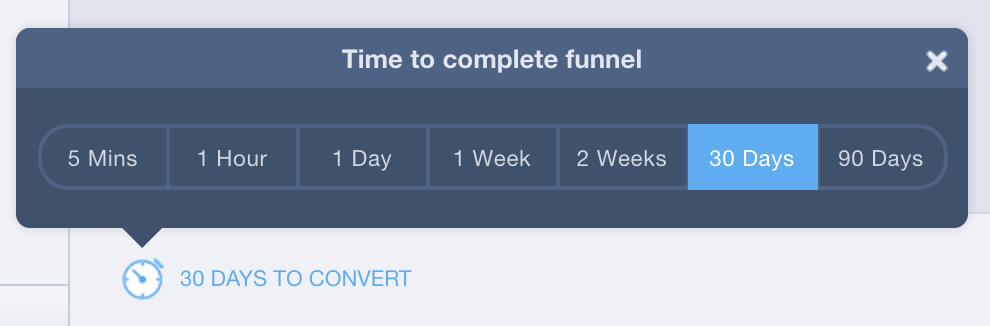
Find this option before you save your funnel
Mixpanel is asking you, “How much time does it take to complete this funnel?” Your options are 5 minutes, 1 hour, 1 day, 1 week, 2 weeks, 30 days, and 90 days. If you have a SaaS business with a 30-day free trial, you will select 30 days. However, if you offer a 3-month trial, you’ll want to select 90 days. Conversely, if you’re selling an eBook that has a 7-day free email course leading into it, you might choose 1 week.
Once you click Save, you’ll see your funnel visualized like this:
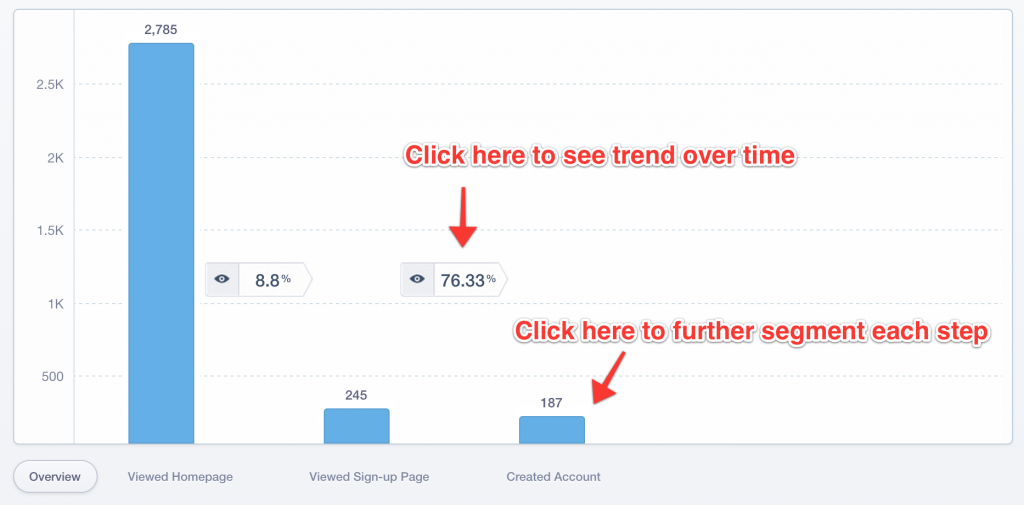
A saved funnel
Each step in the funnel is represented by a bar graph. You can click each bar and further segment the data. For example, you could segment Created Account by country. In between each bar is the conversion rate (8.8% and 76.33% respectively above). You can also drill into this data by clicking on the conversion rate and seeing a trend line over time.
Explore
Under the People heading in the side navigation, you’ll find Explore. This is my favorite part of Mixpanel, especially if you’re just starting to get new users or customers.
At first glance, Explore is just a list of people who have signed up on your website.
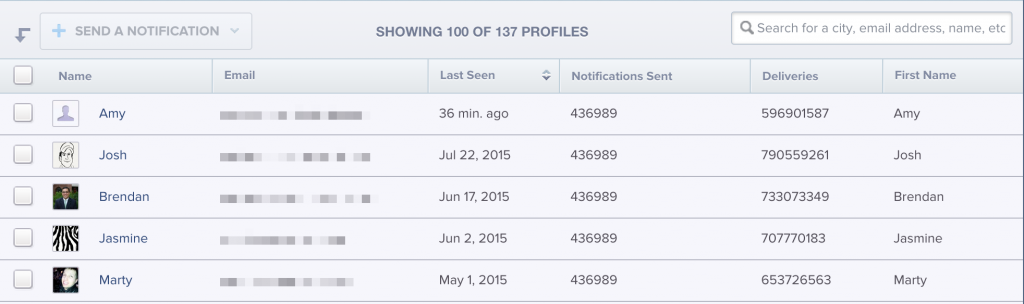
Explore provides you with a list of users
However, clicking on any of these profiles will reveal something amazing: the journey that person took to becoming a customer. If Segmentation and Funnels are the macro views, Explore and, specifically, User Profile is the micro view.
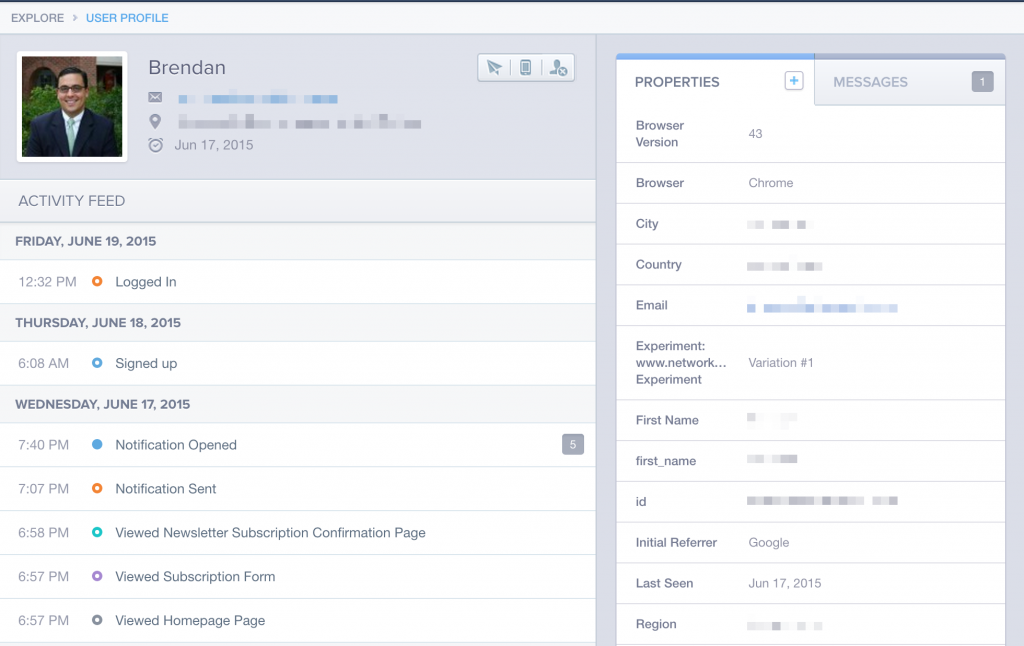
You can see your customer’s journey in User Profile
In this screenshot, we see that Brendan came to our homepage from a Google search on a Wednesday night. From there he subscribed to the waiting list email. We sent him a sign-up link that night by email, but he waited until the following day to sign up. Then he waited until Friday (perhaps on his lunch break) to log in for the first time.
Bonus tip: I like to take these user profiles and turn them into full customer journeys by looking at the contact’s Twitter, LinkedIn, and other profile information and overlaying any significant events that occurred on top. Sometimes you’ll find that a tweet, or email to customer support, preceded the sign-up event.
If I want more customers like Brendan, digging into the details of how he became a customer can be helpful. I might learn that many of my valuable customers interacted with my blog three times before they clicked “Sign up.” If I check who else they follow on Twitter or are connected to on LinkedIn, I might discover that many of these customers are connected with each other.
These clues are especially helpful early on when you don’t have very many customers. Finding out why one person signed up might help you find other people like them.
Insight
Mixpanel’s Insight section allows you to create interactive trend lines with your data. If you wanted to segment “Signups by Plan” your graph would look something like this:
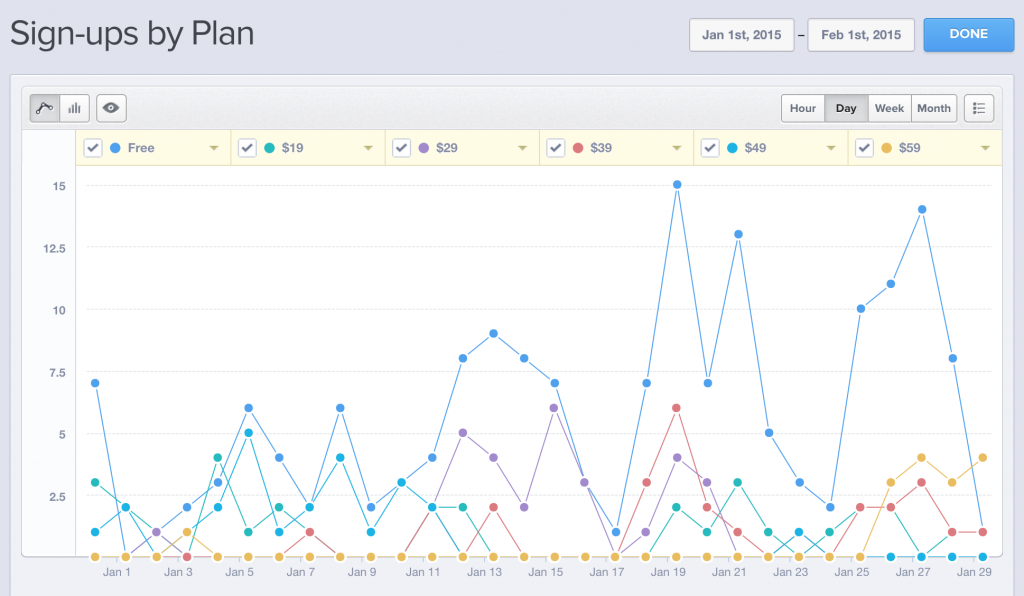
A sample Insight graph
Once you’ve generated the graph by its segment, you can further filter by Customers that match all of / any different properties. For example, in the report above we may want to filter by Timezone to see if higher priced sign-ups are coming from a certain area.
How to use this data
Look for spikes, and try to cross-reference those with particular marketing campaigns you might be running. Was there a spike in new users on January 19 because your site got some media attention?
Also, observe trends: are there certain plans or tiers that are becoming less popular?
The more data you collect on customers, the more insights you’ll be able to generate. Some products will include a brief survey when users sign up that includes demographic information like Industry, Job Title, and Company Size.
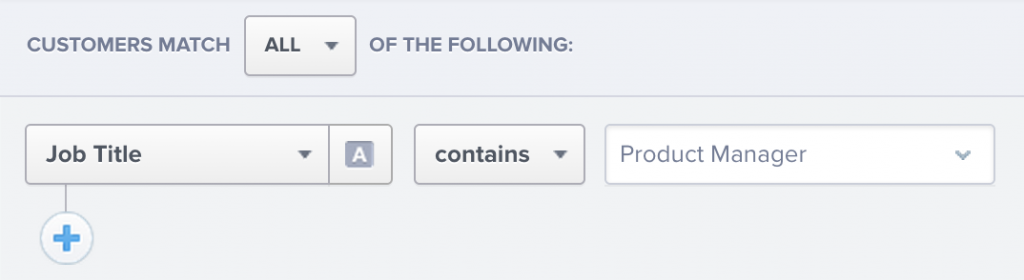
Any user information you collect can be used as a filter
These properties will allow you to ask deeper questions of your data. Questions like:
- How many of our signups came from companies with 1–10 employees?
- How many of our account holders are Product Managers?
- Are we still getting many government signups?
When you discover a significant trend, it gives you a new hypothesis to test. For example: if you discover that Product Managers are a significant source of income, you could try targeting that group with Facebooks Ads.
Notifications
In this book, I’ve spoken quite a bit about the power of email in marketing. I’d be remiss if I didn’t mention Mixpanel’s built in notification feature. You can send a variety of message types: email, SMS, push notification, webhooks, and in-app message.
Using the same property filters available elsewhere, you can trigger automatic emails to specific individuals, depending on where they are in the marketing funnel. For example, you might want to send users an email five days after they sign up to see how their trial is going:
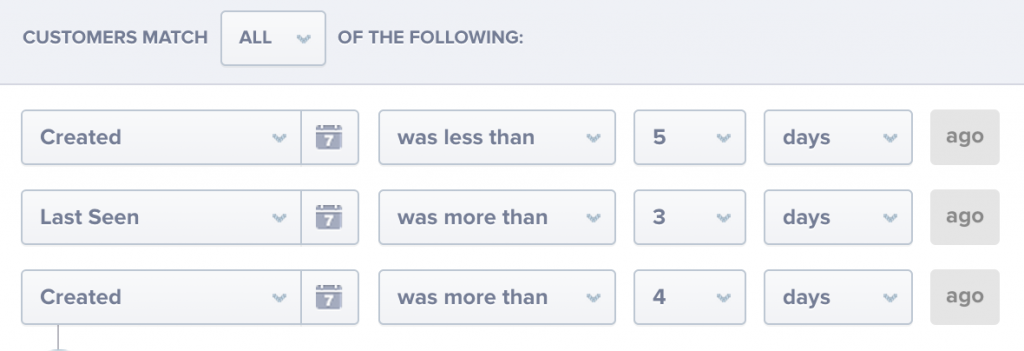
Target specific users by using criteria
You might also include a link that allows users to upgrade to a paying account.
What’s great about Mixpanel’s notifications is you can view them in your funnels, to see how they affect your conversion and upgrade rates:
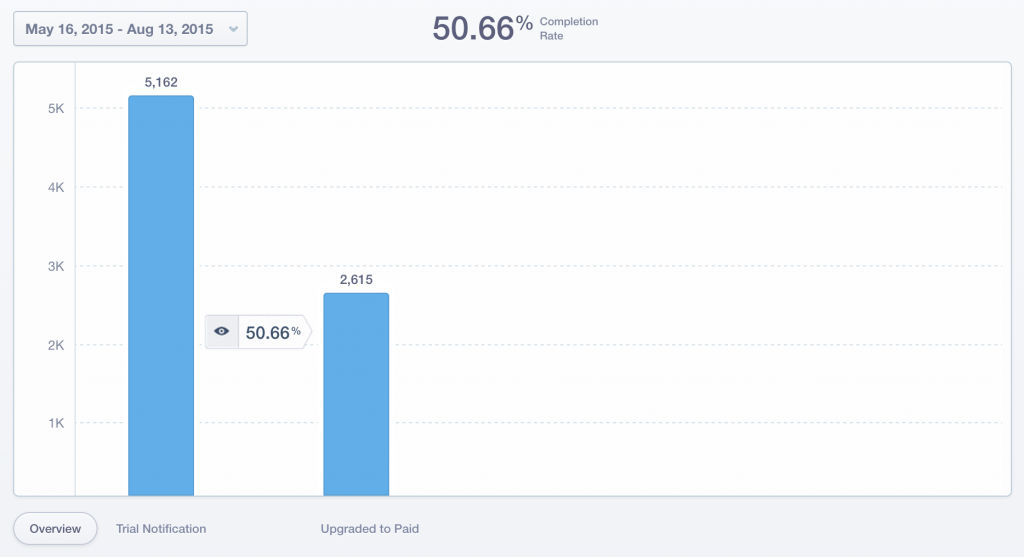
See how notifications affect your funnels
Here are other options with Notifications:
- A/B tests: create different versions of your message, and see which variant converts better.
- Mail merge: insert variables in your message (first name, trial remaining, product purchased) and Mixpanel will dynamically fill them as they are sent.
- Scheduling: you can trigger emails to be sent immediately, or you can schedule them to be sent at a particular of day.
- In-app notifications: just like email, you can send in-app notifications for both mobile and web applications. Want to trigger a pop-up for users who haven’t upgraded to your paid version? This is an excellent way to do that.
More resources
We’ve just scratched the surface of what’s possible with Mixpanel. For further learning I recommend:
- mixpanel.com/blog/ - Mixpanel consistently posts new usage examples on their blog.
- mixpanel.com/learn/ - You’ll find Mixpanel’s basic video tutorials here.
Buy the EPUB & PDF to read offline and support the work.
Buy the book — $10